 NotchPad
Try the built-in option first
- Press Command–Space to open Spotlight.
- Press Command–4 or choose the Clipboard button.
- Allow clipboard search if prompted.
- Search for the item, copy it, then press Command–V in your destination app.
Apple documents these steps in its Spotlight clipboard guide. The guide also explains how to clear history. The feature is available in macOS Tahoe 26 and newer; on an older system, use a clipboard app if you need earlier copies.
Use NotchPad when you also need notes and saved replies
- Install and run NotchPad on a supported Apple silicon Mac.
- Copy the text, link, image, or Finder file you want to keep.
- Double-press Control to open NotchPad and choose Clipboard.
- Search for a word you remember, copy the result, and paste it where you need it.
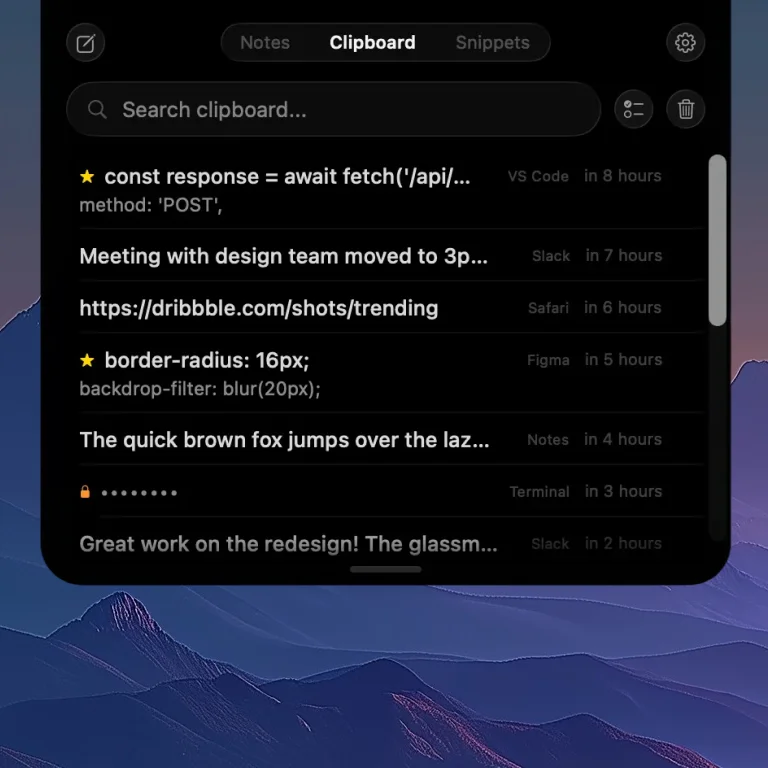
Check the free limit if new copies stop appearing
Free keeps 10 clipboard items. Once those slots are full, capture pauses until you delete an item or unlock Pro. Your saved history remains available. Pro removes the free plan limit; the history setting still controls how many items you keep.
Turn repeated text into a snippet
Clipboard history is for what you copied. Snippets are for what you deliberately want to reuse. Save a reply, command, signature, or prompt with a name so you can find it again without guessing when you last copied it. Free includes 5 snippets; Pro removes that limit.
An app can’t recover copies it never saved
Installing a history app after losing a copy does not recreate the past. If the item was never captured, return to the source page, document, or app. If a Finder file entry no longer opens, check the original file: the history entry is a reference, not a backup.
Keep history useful without keeping everything
Delete sensitive items you no longer need. Check the app’s capture controls and retention setting. In NotchPad, recognized sensitive text is encrypted and masked separately; detection cannot identify every possible secret. Clipboard history is excluded from NotchPad’s AI Connections.
Apple silicon Mac · macOS 15+ · No notch required. Free to start. Pro is $9.99 once for up to 3 Macs.