 NotchPad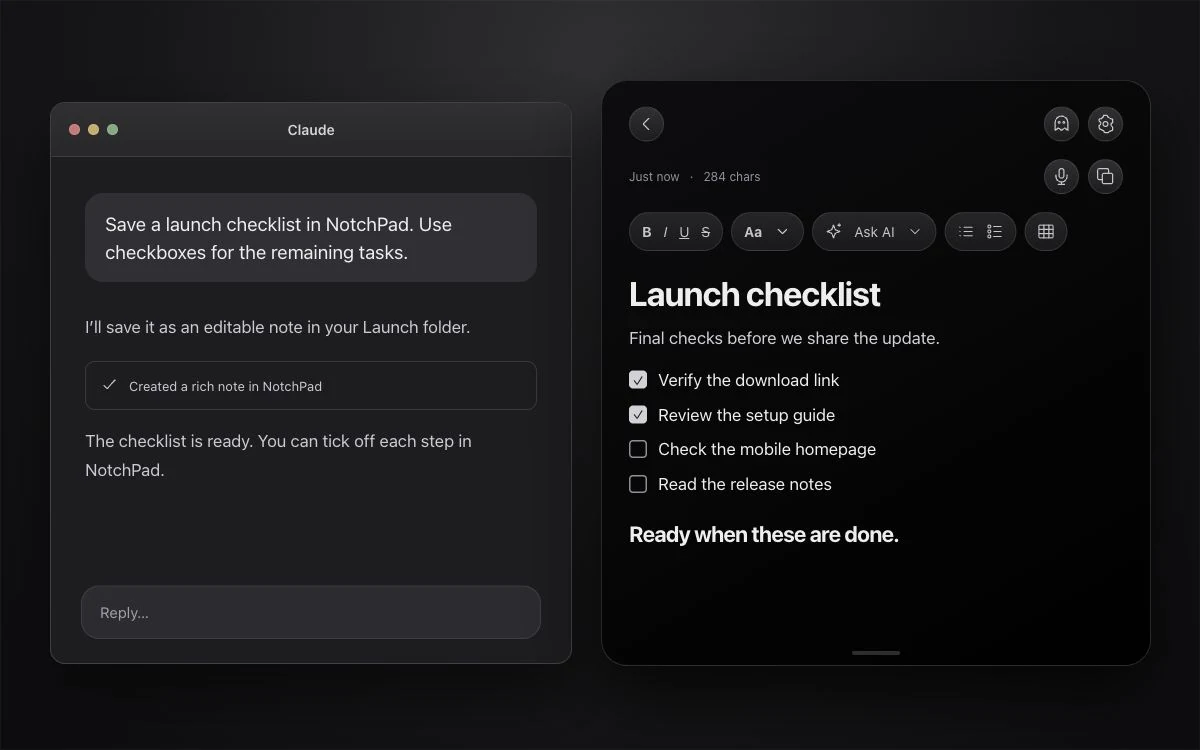
Set up the connection inside the app
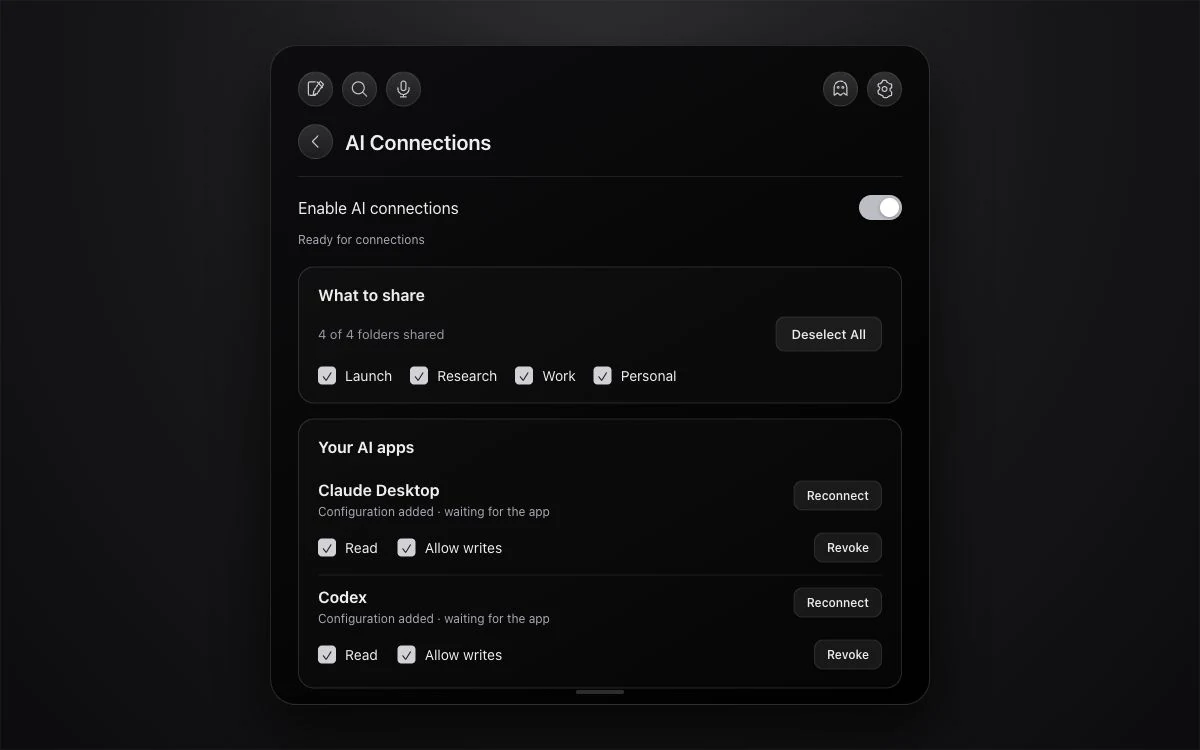
- Open NotchPad Settings → AI Connections.
- Turn on Enable AI connections.
- Under What to share, choose folders and whether to include unfiled notes. The first setup selects existing folders by default; adjust that selection to suit you.
- Under Your AI apps, click Connect for Claude Desktop, Claude Code, Codex, Cursor, or VS Code. NotchPad adds the configuration where supported.
- Reload the AI app’s MCP connection or start a fresh session, following the instruction shown for that app.
- Enable Allow writes for the connection if you want it to save notes, then reload its MCP tools.
For another MCP app, use the Other MCP apps section. NotchPad provides the configuration for clients it cannot set up directly. Keep NotchPad running while you use the connection.
Start with a task you actually need
- Research: “Read the notes in my Launch folder and summarize the open questions. Save the summary as a new note.”
- Development: “Create a test checklist in NotchPad with interactive checkboxes. Include the steps we still need to verify.”
- Follow-ups: “Append today’s decisions to this project note. Preserve its existing content.”
- Reference: “Find my note about the export workflow and open it in NotchPad.”
Reading and writing are separate permissions
| Permission | What the AI app can do |
|---|---|
| Read | List shared folders; search and read accessible notes; read snippets when separately enabled |
| Allow writes | Create notes, append text or rich content, open notes, and create snippets when snippet access is enabled |
| Never provided by these tools | Move, rename, delete, or replace notes or folders; read clipboard history, locked notes, or Apple Notes links |
The note should look like a note
For headings, lists, and tables, ask the AI app to create a Markdown note with Markdown formatting selected. For font sizes, colors, highlights, alignment, or interactive checklists, ask it to use the rich-note tools. NotchPad stores the result as editable content. Pasting markup into a plain-text note does not turn that existing note into rich text.
If a tool is missing or markup appears as text
- Confirm the app has write access in NotchPad and reload its MCP connection.
- Start a fresh AI session so it receives the current tools and formatting instructions.
- Ask for Markdown format or the rich-note tool explicitly, then check the new note in NotchPad.
- If you changed permissions or shared folders, reconnect or refresh the client before trying again.
You choose what leaves your Mac
The connection between NotchPad and the local MCP client runs on your Mac. NotchPad does not upload your notes to its servers. Your connected AI app may send shared content to its AI provider under that app’s privacy settings. Select folders accordingly, and revoke a connection in NotchPad whenever you want.
AI Connections does not require Apple Intelligence. Normal NotchPad free plan limits still apply; your AI app’s own account, usage limits, and fees are separate. Pro is $9.99 once for up to 3 Macs. It removes the free plan limits on notes, clipboard history, snippets, and built-in AI edits. No subscription.