← Back to Blog
Voice Notes with NotchLive, Saved Back to NotchPad
April 2026 · 5 min read
NotchPad is intentionally simple: it is your quick notebook, clipboard history, snippets, and Apple Notes access point. It does not need to become a full AI app to support voice notes.
Instead, NotchLive now handles the voice layer. NotchPad 1.3.0 adds a microphone button that opens NotchLive Notes. You dictate there, use Raw or AI cleanup, then send the finished note back to NotchPad.
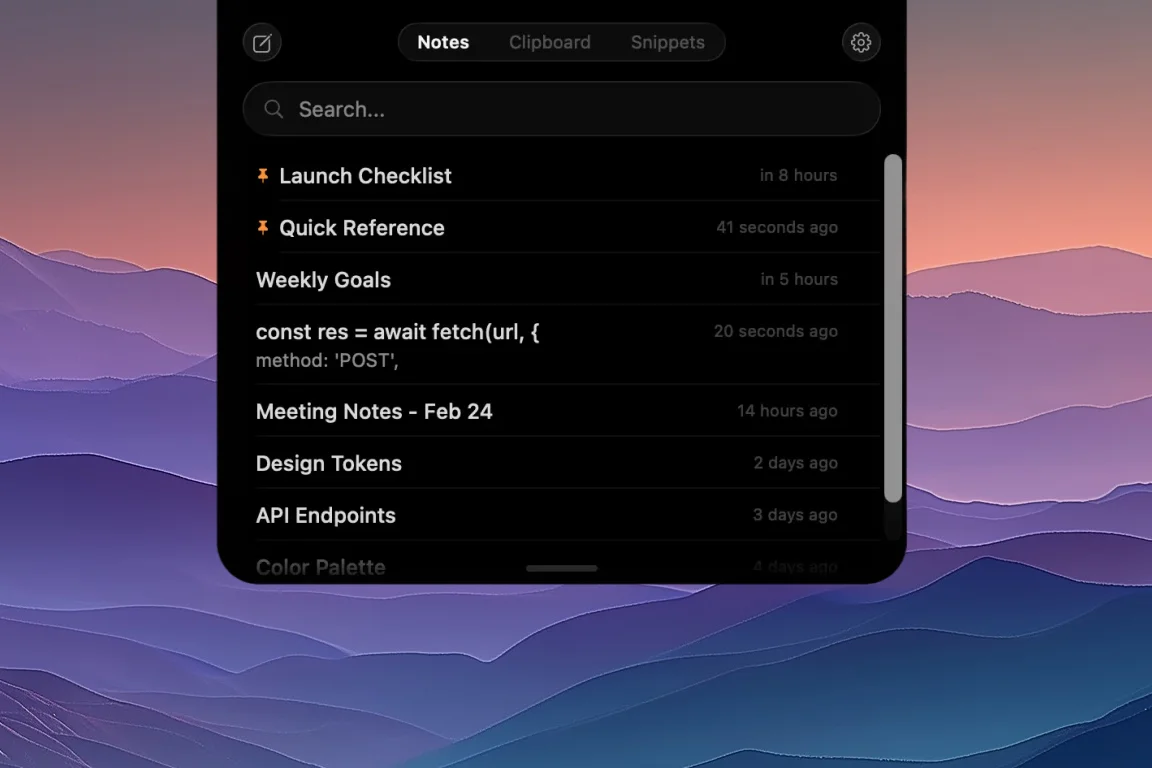
NotchPad stays the notebook. NotchLive handles speech-to-text capture.
Why split the work?
Voice notes need microphone capture, speech recognition, and AI cleanup. NotchLive already has the on-device Whisper AI pipeline for live captions and translation, so it is the natural place to record and clean up spoken notes.
NotchPad is the better home for the final note. It has pinned notes, search, rich text editing, Apple Notes access, and the muscle memory people already use throughout the day.
Short version: NotchLive records and cleans up. NotchPad stores, edits, and organizes.
The workflow
- Open NotchPad from the notch or with double Control.
- Click the microphone button from the notes list or a note editor.
- NotchLive opens directly in Notes mode.
- Speak naturally, then choose AI or Raw.
- Click the NotchPad button to save the note back.
If you started from an existing NotchPad note, NotchLive can continue that note and send the updated content back into the same place. If you start fresh, the handoff creates a new NotchPad note.
What happens if NotchLive is not installed?
The microphone button is still useful. NotchPad shows a small banner that explains the NotchLive voice-note flow and gives you a direct path to get it. No mystery button, no dead end.
Voice dictation and AI cleanup require NotchLive Pro. NotchPad itself remains free for notes, with Pro still focused on clipboard history and snippets.
Layout matters too
NotchPad 1.3.0 also adds Tall mode. You can now pair Short or Tall height with Narrow or Wide width, which makes the note editor more comfortable for longer writing sessions without changing the compact notch-first feel.
That matters for voice notes because dictated text can arrive quickly. Tall mode gives you more room to review and edit after NotchLive sends the note back.
Two tiny apps, one workflow
The best version of this feature is not a giant app. It is two focused notch apps that know how to hand work to each other: NotchLive for audio, NotchPad for text.
Download NotchPad — Free
Start free with NotchPad notes. Voice dictation requires NotchLive Pro. Learn about NotchLive.
 NotchPad