← Back to Blog
Access Apple Notes from Your MacBook's Notch
March 2026 · 6 min read
Apple Notes is where most Mac users keep their notes. It's reliable, it syncs across devices, and it comes free with macOS. But accessing it means opening the Notes app, finding the right note, and switching between windows. If you're deep in a coding session or writing flow, that context switch adds up.
Starting with v1.2.0, NotchPad integrates directly with Apple Notes. You can browse, search, and edit your Apple Notes from the NotchPad widget — without ever opening the Notes app. Changes sync back instantly.
Why Apple Notes needed a shortcut
Apple Notes doesn't have a global keyboard shortcut. There's no quick-access panel, no menu bar integration, no way to glance at a note without Cmd+Tab to the full app. For quick reference — checking a meeting agenda, looking up an API endpoint, reviewing a checklist — launching the full Notes app feels heavy.
This is the same problem that led people to clipboard managers in the first place. The data is on your Mac. You just need a faster way to get to it.
How it works in NotchPad
Inside NotchPad's Notes tab, there's a tabbed control: "My Notes" and "Apple Notes." Tap "Apple Notes" and you see every note from the Apple Notes app — organized by folder, fully searchable.
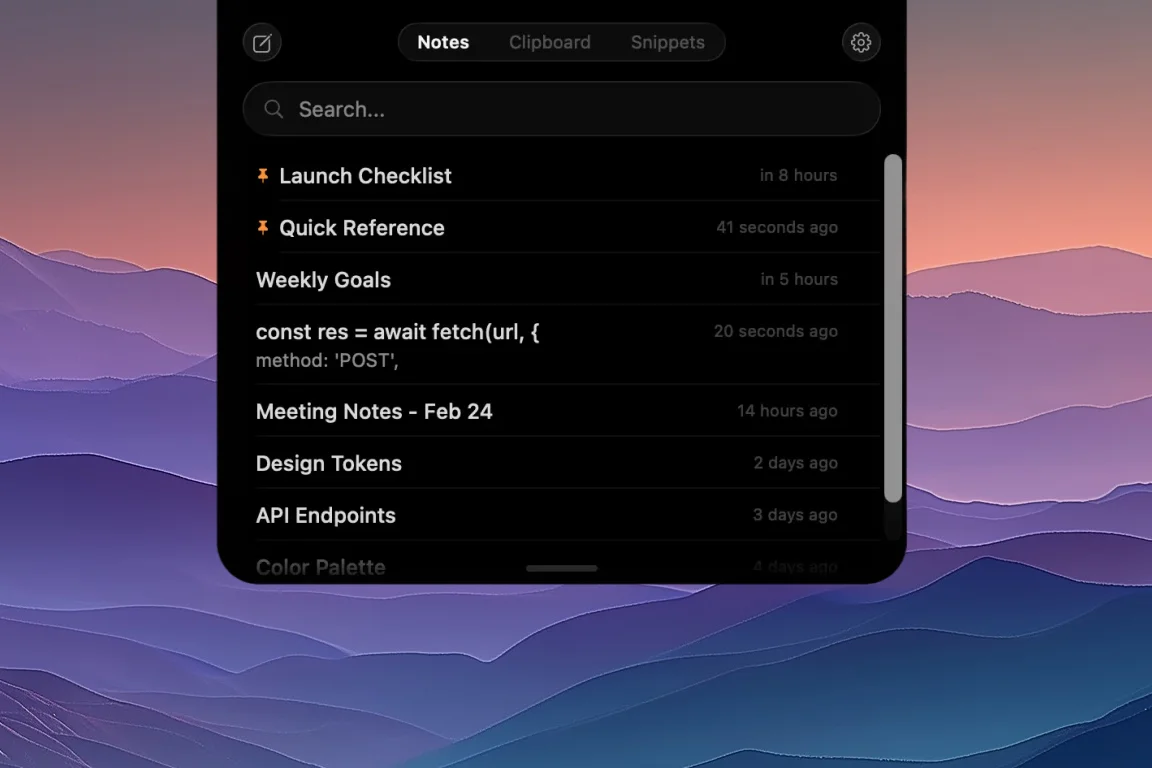
Browse your notes directly from the notch — no need to open the Notes app.
The workflow is simple:
- Hover over the notch (or press ⌃⌃ on any Mac) to open NotchPad.
- Switch to the Apple Notes tab. Your notes appear instantly from a cached list.
- Search or browse to find the note you need. The search covers note names and folders.
- Tap to open and edit. Changes sync back to Apple Notes in real time.
That's it. No Cmd+Tab, no full-screen app, no losing your place. Your Apple Notes are one hover away.
Two-way sync
This isn't a one-way import. When you edit an Apple Note through NotchPad, the changes are written back to Apple Notes immediately. If someone shares a note with you and you update it in NotchPad, the changes show up on their device too — through Apple's existing sync infrastructure.
The sync is text-based. Images and attachments that exist in your Apple Notes are preserved — they just aren't displayed in the NotchPad widget. You'll see the text content, make your edits, and the original attachments stay untouched.
What stays separate
Apple Notes and NotchPad's own notes ("My Notes") are kept in separate tabs. They don't mix. This is intentional:
- My Notes are local-only, stored on your Mac, and can be encrypted with AES-256-GCM and locked with Touch ID. They never leave your device.
- Apple Notes sync to iCloud (if you have iCloud Notes enabled). They follow Apple's sync and storage model. NotchPad doesn't change any of that.
If you have sensitive information — API keys, credentials, private notes — keep those in My Notes where they're encrypted locally. Use Apple Notes for the things you already keep there: meeting notes, shared documents, reference material.
Performance
The first time you switch to the Apple Notes tab, NotchPad requests automation permission from macOS ("NotchPad wants to control Notes"). This is a one-time system prompt — standard for any app that communicates with Apple Notes via AppleScript.
After that, NotchPad caches your notes list for fast navigation. A background refresh picks up new or edited notes automatically. Opening the tab feels instant because you're reading from the cache, not waiting for Apple Notes to respond.
Who this is for
If you already use Apple Notes and want faster access without opening the full app, this is the feature. Common workflows:
- Developers who keep project notes, architecture decisions, or onboarding docs in Apple Notes and need to reference them while coding.
- Writers who outline in Apple Notes and want to glance at their structure without leaving their editor.
- Professionals who check meeting agendas, shared checklists, or team notes throughout the day.
- Anyone who uses Apple Notes on their iPhone and wants quick access to those same notes on their Mac — from the notch.
Free, no catch
Apple Notes integration is part of NotchPad's free tier and stays uncapped. My Notes starts with 20 NotchPad notes, while Pro is a $9.99 one-time purchase that removes NotchPad limits for notes, clipboard history, snippets, and AI tools if you want those later.
This isn't a teaser feature gated behind a paywall. If all you need is a quick way to access Apple Notes from your notch, you can use NotchPad for free, indefinitely.
Getting started
Download NotchPad, hover over the notch (or press ⌃⌃), switch to the Apple Notes tab, and grant the automation permission when macOS asks. Your notes will appear immediately.
If you have questions or feedback about the Apple Notes integration, get in touch — we reply to every message.
Related articles
Mac Clipboard Security: Passwords, History, and Encryption
How to Use Your MacBook's Notch for Productivity
Download NotchPad — Free
Start free. Pro is a $9.99 one-time purchase that removes NotchPad limits. No subscription. See pricing.
 NotchPad