 NotchPad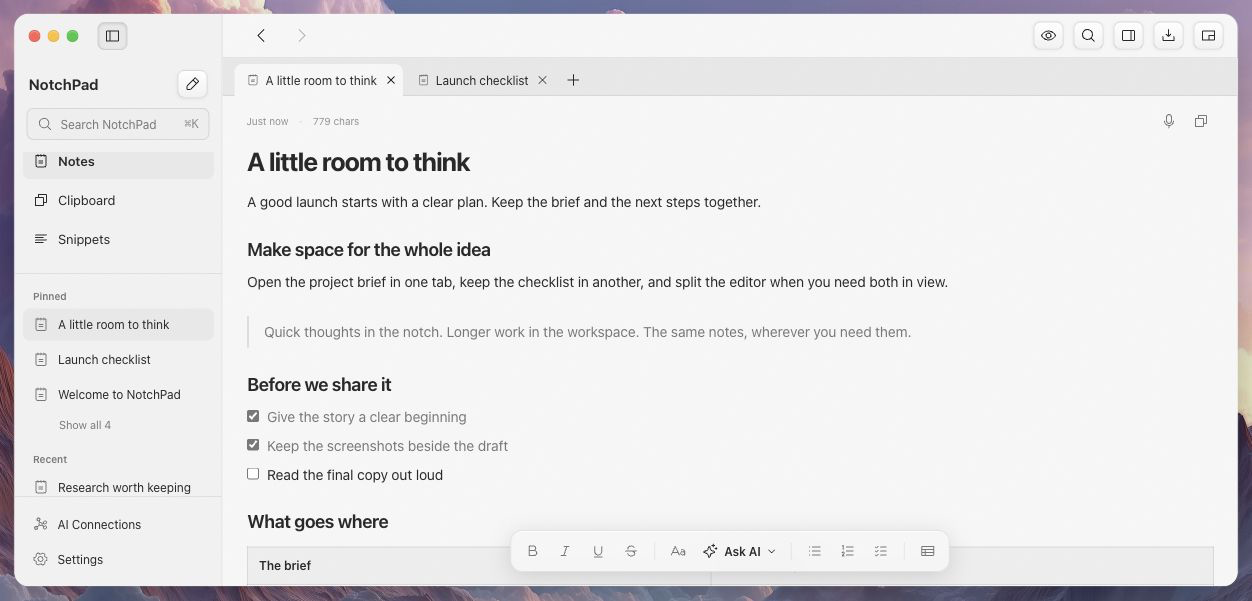
Keep the working set open
Your project rarely fits in one note. There is the brief, a few useful references, the decisions you made yesterday and a checklist for what happens next. Open them in tabs so switching documents does not mean finding the same note again.
Pinned notes sit above recent notes in the sidebar. Folders stay available when you need to browse a project. Search NotchPad with Command–K to find notes, settings and actions; use the header’s search control to search the current page.
Write beside the thing you are checking
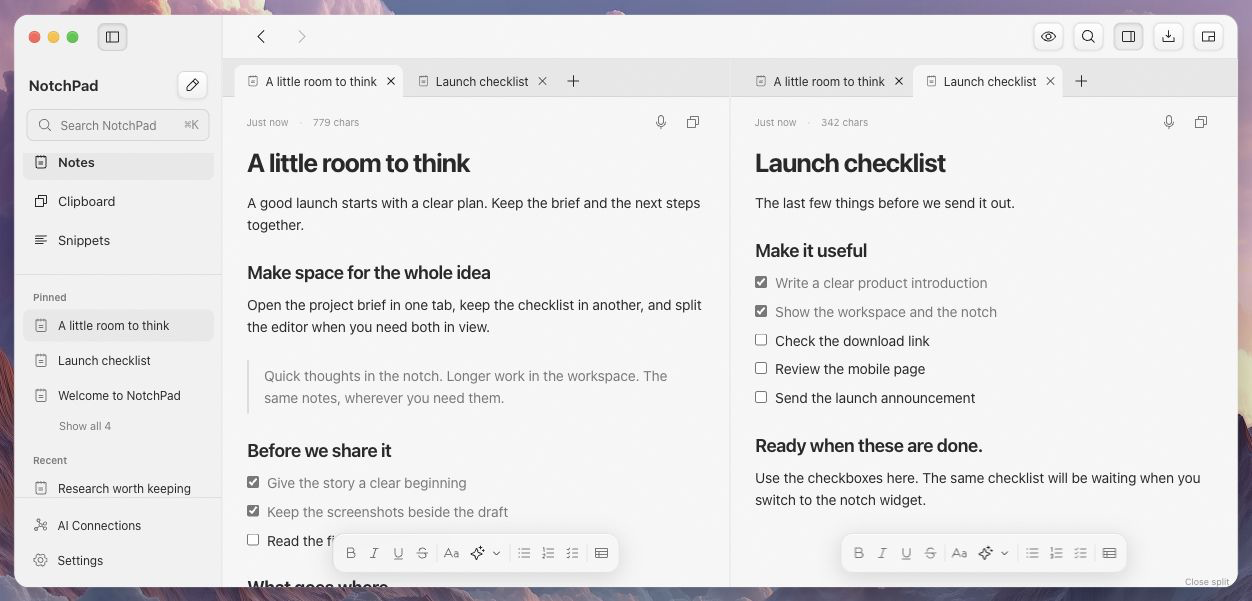
Open Split Editor to keep two notes side by side, or stack them above and below. Compare an outline with a draft. Keep the acceptance criteria beside the test checklist. Leave a reference visible while you work through the details.
Each pane has its own selected tab. You can switch between notes without replacing the reference in the other pane. On a narrow window, NotchPad shows the active pane while preserving the split arrangement.
Rich notes, with the controls close by
Write headings and paragraphs, add images, build editable tables and tick off interactive checklists. The formatting toolbar floats at the bottom of the editor, leaving the document itself in front of you. Speak into an open note with on-device dictation, or let a connected AI app save a formatted draft through AI Connections.
Use the notch when the other app needs the screen
Choose the widget button in the workspace header to return to the compact notch view. Your notes, clipboard history and saved snippets belong to the same library in both interfaces. Use the widget for a quick reference, then open the workspace when you want to keep writing.
For a reminder that belongs beside a specific window or supported page, use an attached sticky note. You choose the surface that suits the task; there is no second copy to maintain.
Make the window yours
Choose Paper or Beige for a light workspace, or Charcoal or Midnight for a dark one. Resize the sidebar, collapse folders, hide the sidebar when you want a clear canvas, and use Back and Forward to return to earlier notes. The notch widget keeps its black appearance.
Take your notes with you
Import RTF, RTFD and text documents as notes. Export individual rich-text documents, or create a password-protected backup of your library with rich notes, embedded images, folders and snippets. Clipboard history is optional. Review a backup before merging its items into the current library.
NotchPad stores your library on your Mac. A backup can move it to another Mac; the app does not provide automatic cloud sync. Locked notes keep their separate protection, and the privacy page explains what is stored and shared.
One app. The screen space you need.
The desktop workspace works on supported Apple silicon Macs with or without a physical notch. Try the whole app for 14 days, with no card and no automatic charge. Pro is $9.99 once for up to 3 Macs. After an unpaid trial ends, your saved content remains readable, copyable and exportable.