← Back to Blog
Secure Note-Taking on Mac: A Developer's Guide
March 2026 · 6 min read
Open your notes app right now. Scroll through it. How many API keys are in there? How many database connection strings, JWT tokens, or SSH passphrases? If you're like most developers, the answer is "more than zero" — and they're sitting there in plaintext, on disk, unencrypted.
We put credentials in password managers and secrets in vaults. Then we copy them into a Sticky Note during debugging and forget about it for six months. This article is about closing that gap.
The problem with developer notes
Developers have a specific note-taking pattern that's different from most users. Throughout a typical day, you might:
- Copy a database URL from a
.env file to test something in another tool.
- Paste a curl command with an API key into a scratch note so you can tweak it.
- Save a snippet of boilerplate code you use across projects.
- Jot down a quick TODO or architecture note during a meeting.
- Copy terminal output from a deployment and paste it somewhere for reference.
Most of this is harmless. But mixed in with the harmless stuff is genuinely sensitive data — and it all ends up in the same place, stored the same way: unencrypted.
Where developer notes go wrong
Apple Notes has a "Lock Note" feature, but it's per-note and manual. You have to remember to lock each sensitive note individually. And locked notes still store their content locally — the lock is just a UI barrier, not disk-level encryption.
VS Code scratch files and tabs you never save sit in VS Code's workspace storage, unencrypted. Close the window and they're gone — or worse, they persist in recovery files you didn't know existed.
Obsidian, Notion, and similar apps sync to the cloud by default. Your API key in a daily note is now on someone else's server. Obsidian can work offline, but there's no per-note encryption without plugins.
Plain text files on the desktop — notes.txt, scratch.md, TODO — are completely unprotected. Full-disk encryption (FileVault) helps if your Mac is stolen, but does nothing if someone accesses your account while the machine is running.
What secure note-taking actually requires
For developer notes specifically, the security model needs to handle three things:
- Encryption at rest. Sensitive content should be encrypted on disk — not just behind a UI lock, but actually encrypted with a strong algorithm. AES-256-GCM is the standard.
- Automatic protection for clipboard data. Since developers constantly copy credentials between terminal, browser, and code editor, the clipboard history itself needs to handle sensitive items differently.
- Zero-friction access. If the security model adds enough friction that you work around it (pasting into an unsecured scratch file), it's failed. Access needs to be fast — Touch ID, not a password dialog.
How NotchPad handles this
NotchPad was built with this exact use case in mind. Here's how it maps to the requirements above:
Notes with Touch ID lock. Any note can be locked with Touch ID. When locked, the note's content is encrypted with AES-256-GCM using a key stored in the macOS Keychain. The plaintext is not stored on disk — not in a cache, not in a recovery file, not anywhere. Unlock is a fingerprint tap. You can read about how this works in our privacy policy.
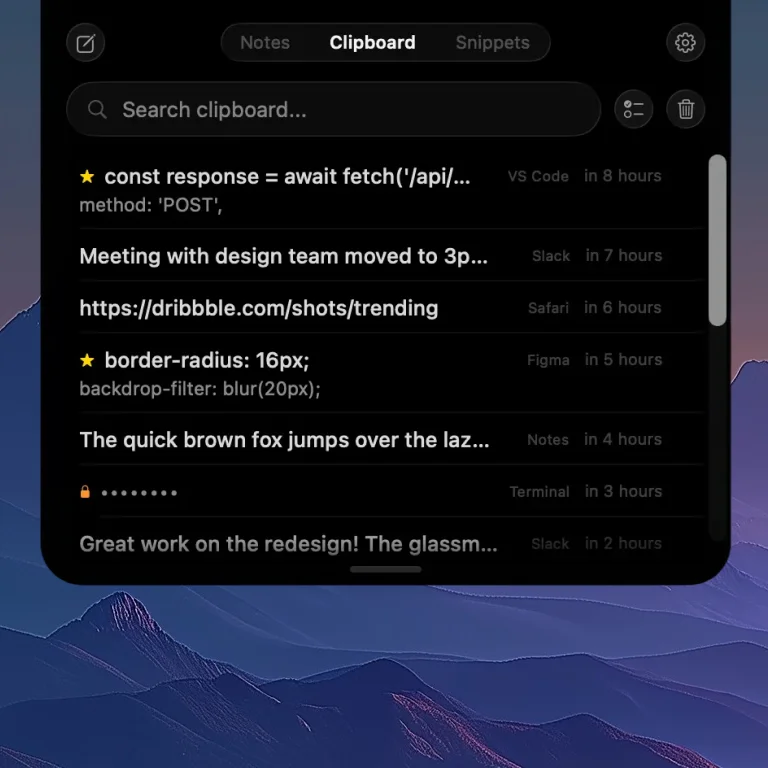
Clipboard history captures everything you copy — passwords are automatically encrypted.
Encrypted clipboard history. NotchPad saves your clipboard history automatically. When you copy a password from 1Password, Bitwarden, or Apple Passwords, NotchPad detects it, encrypts it on the fly with AES-256-GCM, and shows a masked entry. Reveal with Touch ID, auto-masks after 30 seconds. Read more about this in the clipboard encryption deep-dive.
Access in under a second. Hover the top-center screen zone on Macs with or without a physical notch, or press ⌃⌃, and you're in. Notes, clipboard, and snippets are all one tab away. No app switching, no window management, no Cmd+Tab.
Practical developer workflows
Here's how NotchPad fits into a typical development day:
Storing API keys temporarily. You're debugging an integration. You need the API key from your password manager and a base URL from the project docs. Copy both — they're in your clipboard history. The API key is automatically encrypted. Pin the base URL in your clipboard for quick access. When you're done, the encrypted item stays protected and the rest can be cleared.
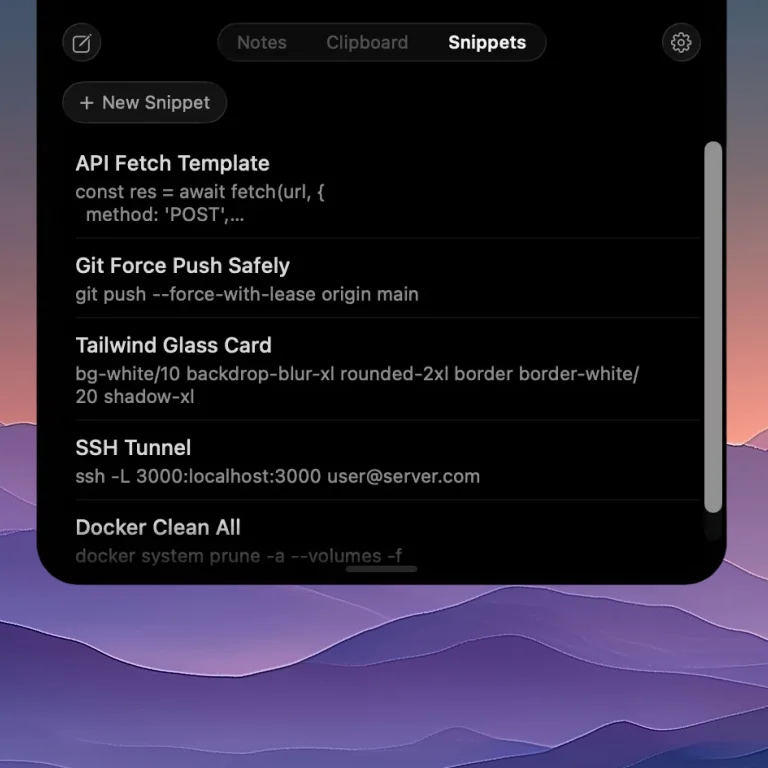
Code snippets saved in NotchPad — one hover away from any app.
Code snippets you use across projects. That Docker Compose template you paste into every new project. The git alias setup you run on new machines. The regex pattern you can never remember. Save them as snippets in NotchPad — they're always one hover away, organized and searchable.
Terminal output during incidents. Something breaks in production. You're running kubectl logs, docker ps, copying error messages and stack traces. NotchPad captures every copy automatically. After the incident, your clipboard history is a chronological record of everything you looked at — searchable and organized by source app.
Meeting notes during standups. Your manager mentions a ticket number and a deadline. Hover over the notch, type it in, done. No need to open a full notes app or create a new document. Check the latest release for improvements to the note editing experience.
What stays local
NotchPad has no cloud content account or sync service. Notes, clipboard history, snippets, files, and AI content stay on your Mac. The app includes optional anonymous usage and reliability diagnostics, controlled in Settings, that never include user content. See the privacy policy for details.
For developers, this matters because:
- Your notes never pass through a third-party server.
- There's no account that could be compromised.
- Compliance-sensitive environments (SOC 2, HIPAA-adjacent) benefit from zero data transmission.
- You can audit exactly where your data lives — it's on your Mac, encrypted, in a known location.
Getting started
NotchPad starts free with 20 NotchPad notes, uncapped Apple Notes access, 10 clipboard items, 5 snippets, and daily AI edits on supported Macs. Pro is a $9.99 one-time purchase that removes NotchPad limits — no subscription, no recurring fees. Your license covers up to 3 Macs (details in the terms of service).
If you have questions, the contact form goes directly to the developer.
Related articles
Mac Clipboard Security: Passwords, History, and Encryption
How to Use Your MacBook's Notch for Productivity
Download NotchPad — Free
Start free. Pro is a $9.99 one-time purchase. AES-256 encryption. User content stays local. See pricing.
 NotchPad