← Back to Blog
Mac clipboard security: what happens to copied passwords?
March 2026 · 7 min read
You open 1Password, copy a login, switch to your browser, and paste. It takes two seconds. In those two seconds, every application running on your Mac — every menu bar utility, every background agent, every Electron app — had full, silent access to your password.
There is no permission prompt. No notification. No audit log. The macOS clipboard has zero access control, and that is a problem most people never think about.
The clipboard is the least protected part of your Mac
macOS asks for permission before an app can access your camera, microphone, contacts, or location. But the clipboard? Any running process can call NSPasteboard.general and read whatever you last copied. Apple enforces no restrictions on this at the system level.
This isn't a theoretical concern. Clipboard-based attacks are common enough that MITRE catalogues clipboard data theft as a recognized technique in its ATT&CK framework (T1115). Real-world examples include:
- Cryptocurrency clipboard hijackers that silently replace copied wallet addresses with the attacker's address. One malware author reportedly made over $560,000 with this technique alone.
- Banking trojans like Zeus Panda and TrickBot that intercept clipboard data to steal login credentials and credit card numbers.
- BleepingComputer researchers discovered malware monitoring 2.3 million cryptocurrency wallet addresses, replacing them when users copied them.
These aren't exotic zero-day attacks. They exploit the simple fact that clipboard data sits in plaintext, available to anyone who asks.
Password managers help — but not as much as you think
1Password, Bitwarden, and Apple Passwords all copy credentials to the clipboard when you use them. Some mitigate the risk by clearing the clipboard after a timeout (usually 30–90 seconds). Some set a special macOS pasteboard attribute to signal that the content is "concealed."
But these are voluntary conventions, not OS-enforced protections:
- The clipboard contents are still plaintext during the entire timeout window.
- The "concealed" attribute is advisory — any app can still read the data.
- Clipboard managers that don't respect the attribute will store the password in their own history, often permanently.
If you use a clipboard manager alongside a password manager (and millions of Mac users do), your passwords may be sitting in an unencrypted history file on disk. Indefinitely.
Universal Clipboard makes it worse
With Handoff enabled, copying on your Mac can sync the clipboard to your iPhone via Universal Clipboard. On iOS, the foreground app has full clipboard access — creating an unintentional data leakage path between devices.
This is great for convenience. It's terrible for security. A password you copied on your Mac can end up readable by whatever app you happen to have open on your phone.
What clipboard encryption actually looks like
The solution isn't to stop using the clipboard. It's to encrypt sensitive items before they're written to disk. Here's what that looks like in practice:
- Detection. When you copy something from a password manager, the clipboard manager recognizes it as sensitive — either through the concealed pasteboard attribute or by identifying the source app (1Password, Bitwarden, Apple Passwords).
- Encryption at rest. Instead of storing the plaintext in its history, the clipboard manager encrypts it using AES-256-GCM before writing anything to disk. The plaintext never touches storage.
- Authentication to reveal. When you need to see the content again, you authenticate with Touch ID. The item is decrypted in memory, shown briefly, and auto-masked after a timeout.
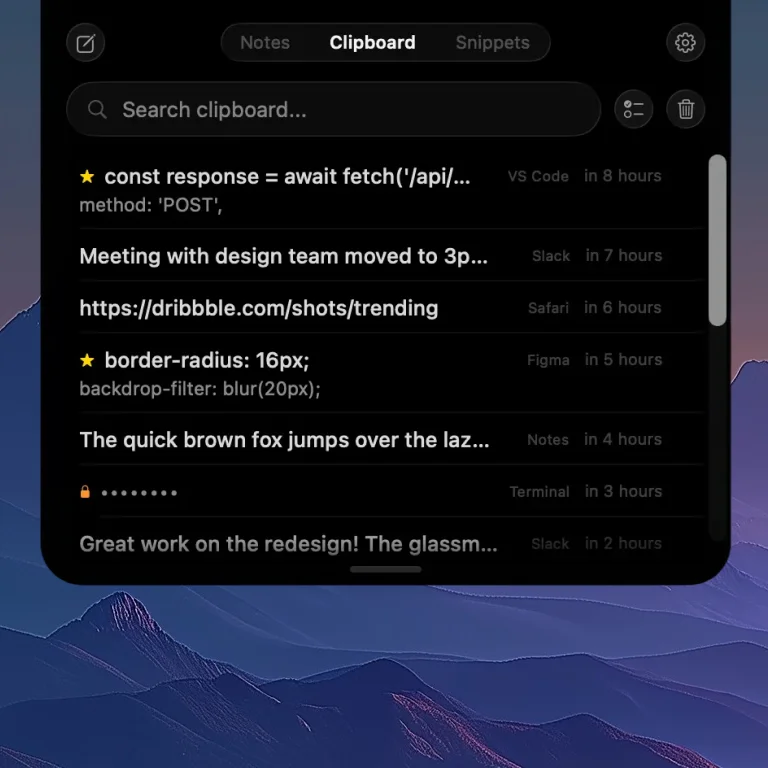
Clipboard history in NotchPad — passwords are automatically encrypted and masked.
This is the approach NotchPad takes. Passwords copied from 1Password, Bitwarden, and Apple Passwords are automatically detected and encrypted with AES-256-GCM. The encryption key is stored in the macOS Keychain, and decryption requires Touch ID. You can read more about how data is handled in our privacy policy.
Why AES-256-GCM specifically?
AES-256-GCM is the same encryption standard used by government agencies and financial institutions. The "GCM" part (Galois/Counter Mode) provides both confidentiality and integrity — meaning the data can't be read or tampered with without the key.
Compared to simpler approaches like encrypting with a user-chosen password, using the macOS Keychain + Touch ID means:
- No password to remember or type.
- The key is hardware-backed on Macs with a Secure Enclave.
- Authentication is biometric — fast and resistant to shoulder-surfing.
What about apps that "exclude" sensitive apps?
Some clipboard managers let you exclude specific apps — "don't capture anything I copy from 1Password." This is better than nothing, but it has gaps:
- You have to configure it manually for every sensitive app. Miss one and you're exposed.
- It's all-or-nothing. You can't capture non-sensitive items from the same app.
- It doesn't protect manual copies. If you type a password into a text field and copy it, no exclusion rule will catch it.
Auto-detection and encryption is a stronger model. It identifies sensitive content regardless of how you copied it and protects it in place rather than pretending it doesn't exist.
The real-world workflow
Here's what secure clipboard management looks like day-to-day with NotchPad:
- You copy a password from 1Password. NotchPad detects it, encrypts it on the fly, and shows a masked entry in your clipboard history.
- You paste it wherever you need — the clipboard still works normally.
- Later, you need the password again. You hover the top-center screen zone or press ⌃⌃, find the item in your clipboard history, and tap to reveal with Touch ID.
- After 30 seconds, the item auto-masks again.
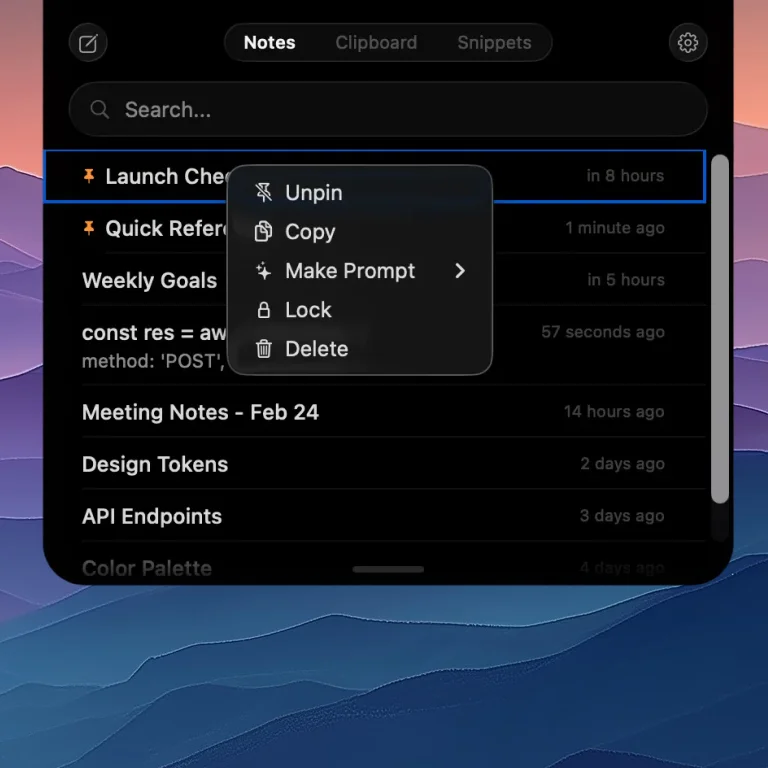
Right-click any note to lock it with Touch ID — content is encrypted with AES-256-GCM.
No extra steps. No configuration. No cloud sync to worry about. Everything stays on your Mac, encrypted, and accessible only to you. Check the release notes for the latest improvements to sensitive data handling.
What you should do today
If you use a clipboard manager on your Mac — and you should, because clipboard history is genuinely useful — make sure it handles sensitive data responsibly. At minimum:
- Check if your clipboard manager encrypts its history. Most don't. If it stores a SQLite database or plist file with plaintext clipboard contents, your passwords are sitting on disk unprotected.
- Check if it respects the concealed pasteboard attribute. Clipboard managers that ignore this signal will happily store every password you copy.
- Consider switching to one with encryption built in. NotchPad encrypts sensitive items with AES-256-GCM automatically — no configuration needed.
The clipboard is one of the most-used features on any computer. It's time it was one of the most protected.
Related articles
Mac Clipboard Manager with Snippets
AI Notes App for Mac with Apple Intelligence
NotchPad 1.5.0: AI Notes, Rich Notes, and Better Clipboard History
Paste vs Maccy vs NotchPad: Which Mac Clipboard App Fits?
Secure Note-Taking on Mac: A Developer's Guide
Download NotchPad — Free
Start free. Pro is a $9.99 one-time purchase. No subscription. See pricing.
 NotchPad