 NotchPad
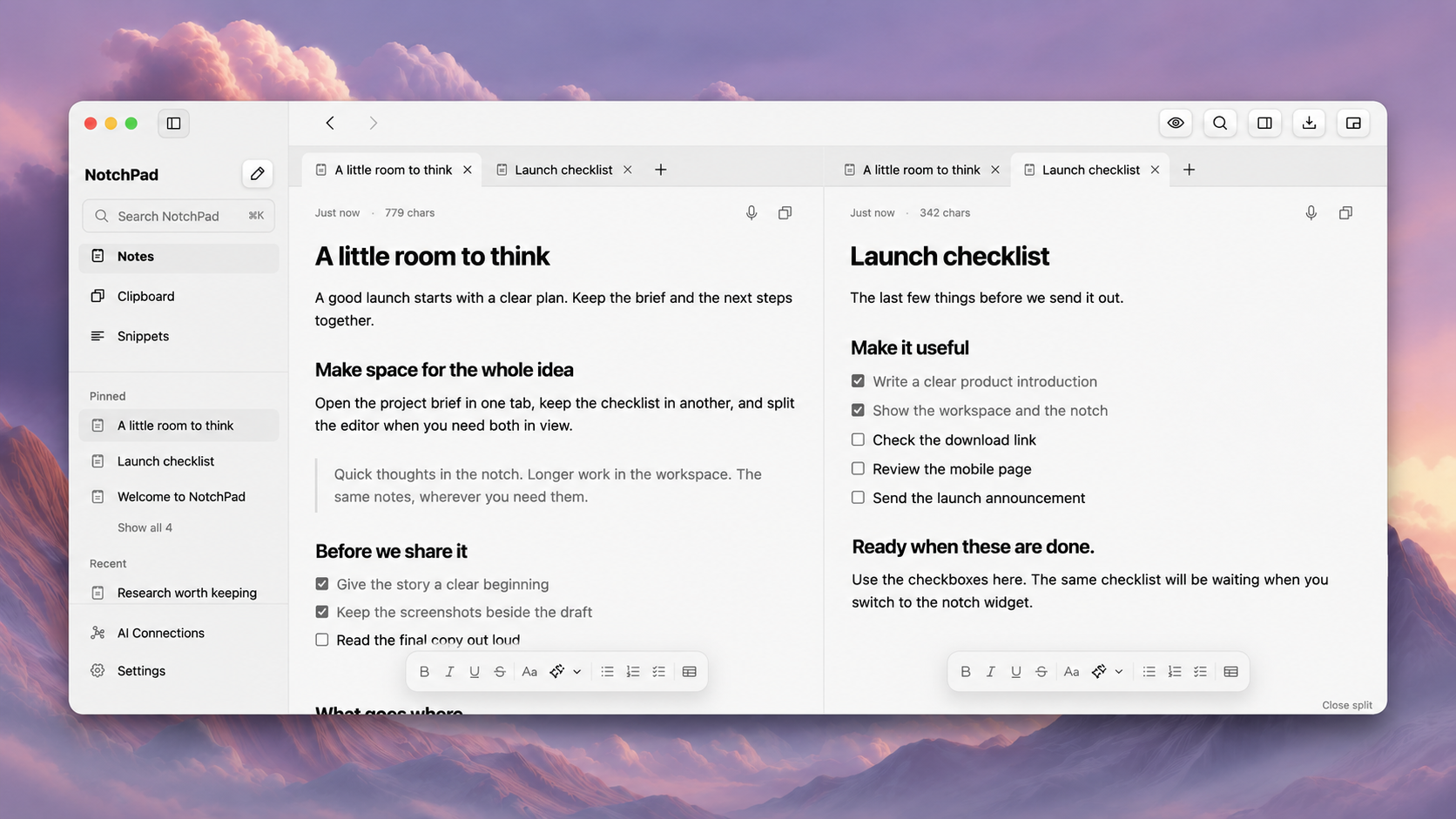
Before moving your notes workflow to a new MacBook Pro, take one real piece of work through it. Not a sample note. Use the project with the reference links, half-finished draft and decisions you would otherwise have to reconstruct.
The PROLED MacBook Pro makes this particularly timely. Apple's new models introduce Dynamic Island, changing the familiar top-of-screen interaction. But the question for a notes app is larger than where its button appears: can you find, use and keep your work as your setup changes? Apple's PROLED MacBook Pro announcement.
Here is the test we would use.
1. Can you reach a note without aiming at the camera area?
Open another app and leave your hands on the keyboard. Can you get the note you need, make a change and return to what you were doing?
With NotchPad, double-press Control to open the compact panel, or use the menu bar. A physical notch is not required. That makes the keyboard a useful starting point whether you keep your existing Mac or buy a different display design. Access options and requirements.
Pass condition: you can reach your work without relying on one particular hover target.
2. Does the app work at your desk, not just in a laptop screenshot?
If you use an external monitor, test that arrangement too. Connect it, open your normal apps and place your notes where you would actually read them. Then disconnect it and return to the laptop.
Do not assume that every top-of-screen utility handles screen selection, full-screen apps or display changes identically. Those details deserve a real test on your setup.
For sustained writing, NotchPad offers a full desktop workspace rather than requiring you to keep a small panel open. Try the workspace beside your reference material and decide whether the layout is comfortable. This is a practical setup check, not a promise about automatic positioning on every monitor configuration.
Pass condition: the workflow is comfortable in the places where you work, not only in the product's screenshots.
3. Can a quick note become useful project material?
Write down an idea. Later, add the source, the reason you chose it and the next action. Can you continue naturally, or do you have to move everything into another tool?
NotchPad's compact view and workspace share the same notes. Tabs and split editors let you keep writing when the thought becomes a larger document. Our guide to capture, workspace and sticky views explains which surface fits each stage.
The test is not whether an app has the longest feature list. It is whether the next useful step is obvious.
Pass condition: yesterday's capture can become today's working document without manual duplication.
4. Can you tell what is current?
An upgrade does not fix an untidy knowledge base. Pick a project and find its latest brief, a decision you made last week and the material behind that decision.
If you use AI tools, apply the same test to their output. A saved answer without its context can become another loose document. Decide which material should be available to a connected tool and which should remain private. Do not assume that installing a notes app automatically collects every chat or gives every connected service access to your library.
NotchPad's project-context guide for Claude and Codex is a better starting point for this decision than a new-hardware specification sheet.
Pass condition: you can explain where the current work lives and what you have chosen to share.
5. Can you get your work back out?
Before committing, export something you care about and open the result. Check the content you actually use, rather than assuming that “export” guarantees every formatting detail or attachment behaves as you expect.
If you work across editors, read our guide to using Markdown notes across apps, then test your own files. A successful round trip with your material is more useful than a broad compatibility claim.
Pass condition: leaving or changing part of the workflow does not mean losing the information you put into it.
Choose the workflow, then the surface
NotchPad is one option for this checklist, not a reason to replace a system that already serves you well. Start with one project during the trial and judge it by how often it helps you return to useful work.
The new MacBook's display can change how you launch a utility. It should not be the only reason you choose a notes workspace.
For the hardware-specific questions, read what Dynamic Island changes for NotchPad. If your starting point is spoken material rather than typed notes, our sibling app's new-Mac live-captions checklist covers that different workflow.