 NotchPad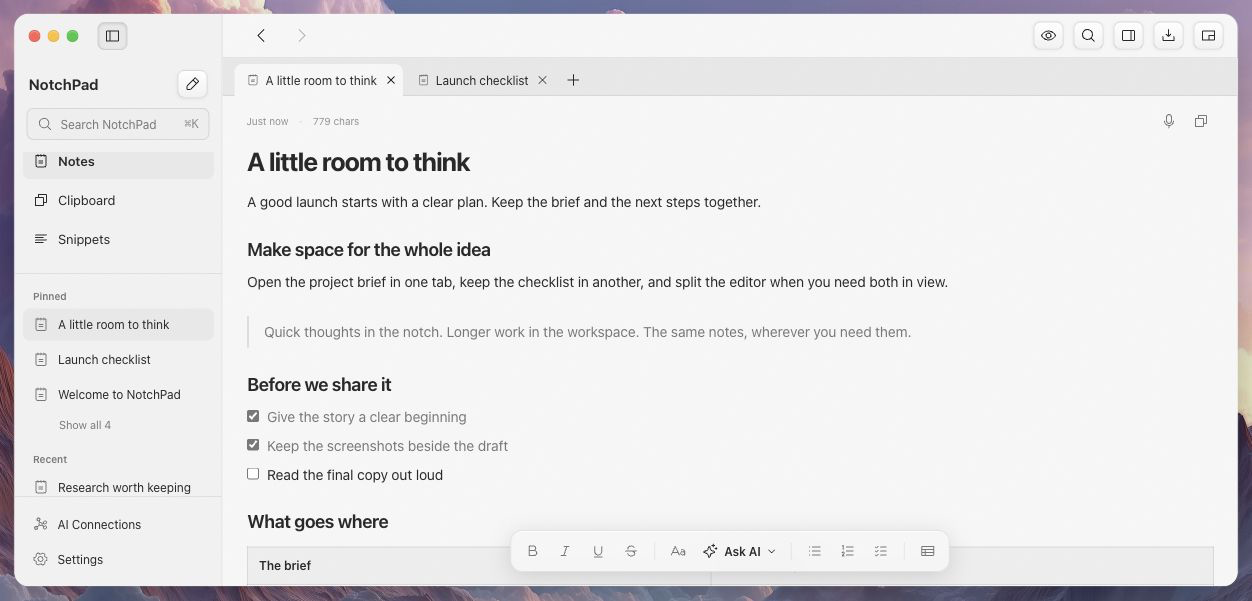
Capture it before it disappears
You notice a missing step, think of a better opening sentence or hear something worth keeping during a call. At that point, opening a whole writing environment can be more interruption than help. Open NotchPad’s notch widget, write the thought, and return to what you were doing.
The widget also keeps clipboard history and named snippets within reach. Copy the reference you need, paste the reply you have already written or glance at a checklist. It is a compact view of your library, not a separate set of disposable notes.
Open the workspace when the thinking gets longer
A short thought can become a draft, a plan or a collection of research. Open the desktop workspace when you need to move between several notes, keep a reference visible or spend time shaping the document.
Tabs keep your current notes open. Split editors let a reference sit beside the draft. Pinned and recent notes make the useful material easy to return to, while folders hold the wider project. Paper, Beige, Charcoal and Midnight change the workspace’s appearance without changing the black notch widget.
Keep the next step beside the work
When you stop writing and start doing, a full notes window may become one more thing to manage. An attached sticky can keep the checklist beside the design, app window or supported browser page where you will use it.
NotchPad can attach a sticky to a window, a supported page or Figma file, or an application. The target determines when the note appears. Attachments stay saved, but a reopened window needs a document identity the app can recognize. The sticky-note guide explains those limits.
| What you are doing | Start here |
|---|---|
| Keeping a quick thought or finding an earlier copy | Notch widget |
| Writing, comparing or moving between documents | Desktop workspace |
| Following steps beside a particular window or page | Attached sticky |
One library means less copying between tools
These surfaces use the same NotchPad notes. You do not have to copy a draft into a second app when it gets longer, or maintain another checklist just to keep it near the task. An edit in one view belongs to the same note in the other.
You can also ask a connected AI app to save a research summary or checklist through AI Connections, then continue working on that note yourself. Read and write permissions are separate, and connected AI apps may send shared content to their own provider.
You do not need a MacBook notch to use it
The workspace is an ordinary desktop window. On a supported Mac without a physical notch, the compact panel opens at the top center of the screen. You can also use the menu bar or double-press Control. The current app supports Apple silicon Macs running macOS 15 or later.
Built-in AI editing has additional macOS 26 and Apple Intelligence requirements. Ordinary rich notes, tabs, splits, clipboard history, snippets and AI Connections do not need Apple Intelligence.
Try a real piece of work
Start with the note you keep reopening today. Try it in the widget, open it in the workspace and put the useful checklist beside the task. The full app has an optional 14-day trial with no card and no automatic charge. Pro is $9.99 once for up to 3 Macs; saved content stays readable, copyable and exportable after an unpaid trial ends.