 NotchPad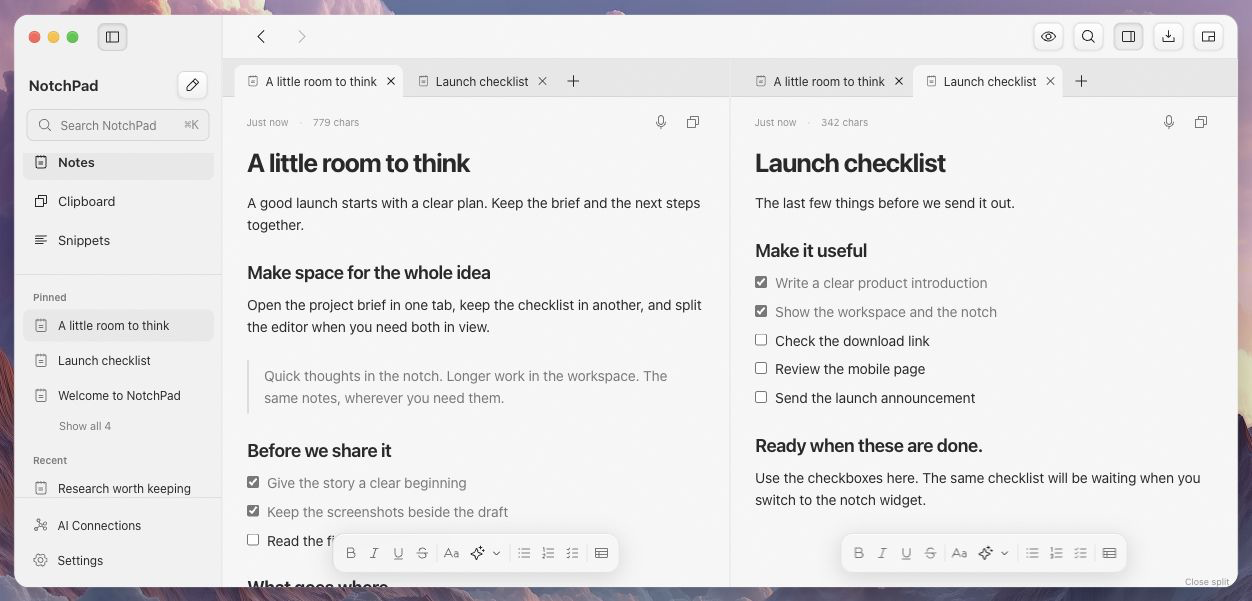
Start with two notes you actually need
Choose a pair with a clear relationship: an outline and its draft, a meeting summary and its action list, or a project brief and its launch checklist. Keeping unrelated documents open creates more things to scan. A split is most useful when one note helps you work on the other.
Open NotchPad’s workspace from its menu bar, or choose Open Workspace in the notch widget. Find your first note in the sidebar or through Command–K. Opening another note adds it to the working tabs.
Open a second editor
- Open the Split Editor control in the workspace header.
- Choose Split Side by Side or Split Above and Below.
- Select the note you want in each pane. Use a note’s context menu and choose Open in Other Pane when you want to send a particular reference to the second editor.
- Keep the reference in one pane and write in the other. Each pane retains its own selected tab.
Side-by-side editing works well for a brief and a draft on a wide screen. Stacking the panes can suit a long reference above a shorter list of next steps. When the window becomes too narrow or short for both panes, NotchPad shows the active one and keeps the arrangement saved.
Give the tabs a small job
Tabs are a working set, not another filing system. Keep the notes you expect to use during this piece of work open. Pin a reference you use every day, and let a project folder hold the rest. Closing a tab does not delete the note.
Use Back and Forward in the header to return through your note navigation. Command–K finds notes and app actions. The header search control searches within the current surface. These are different ways to return to the information you need.
Try it with a launch checklist
Keep the launch brief on the left: who the product is for, what changed and the points the announcement must explain. Put an interactive checklist on the right: finish the screenshots, verify the download and read the announcement out loud.
As you finish each item, tick it off. When you switch to the notch widget, the same checklist is there. You are changing the view of your library, not exporting a separate version.
Move back to a smaller surface
Once the writing is done, choose the widget button in the workspace header for quick access while another app takes the screen. If the checklist belongs beside one window or supported browser page, attach it as a sticky instead.
What to expect from the browser preview
The interactive demo lets you open sample notes, switch tabs, edit text, tick off checklists and try a side-by-side split. It saves your note edits in that browser. Your Mac library, backup files and microphone are not connected to the website.
The native app also supports stacked splits, document import, protected backups and authenticated note locks. Those features run in NotchPad on your Mac.