 NotchPad
Your notes. Beyond the notch.
Capture a quick thought in the notch. Open longer notes in tabs, edit side by side, and keep a sticky beside the window where you need it.
Apple silicon Mac · macOS 15+ · No notch required. 14-day free trial. Pro is $9.99 once for up to 3 Macs.
Give longer notes room
Open notes in tabs, edit two notes side by side, and return to pinned or recent notes from the sidebar. Choose Paper, Beige, Charcoal or Midnight. Keep using the notch widget for quick access.
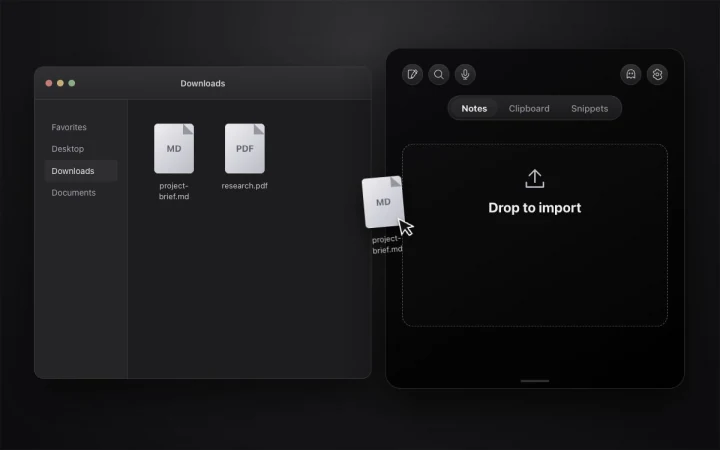
Export password-protected backups with rich notes, embedded images, folders and snippets. Import backups on another Mac or bring in RTF, RTFD and text documents.
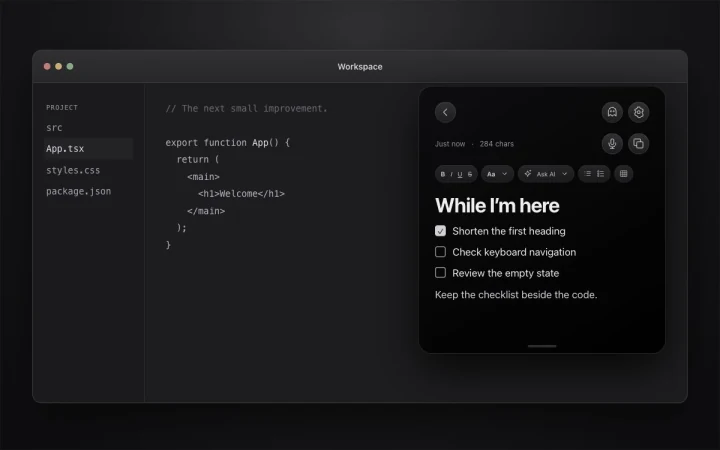
Keep the note with the work
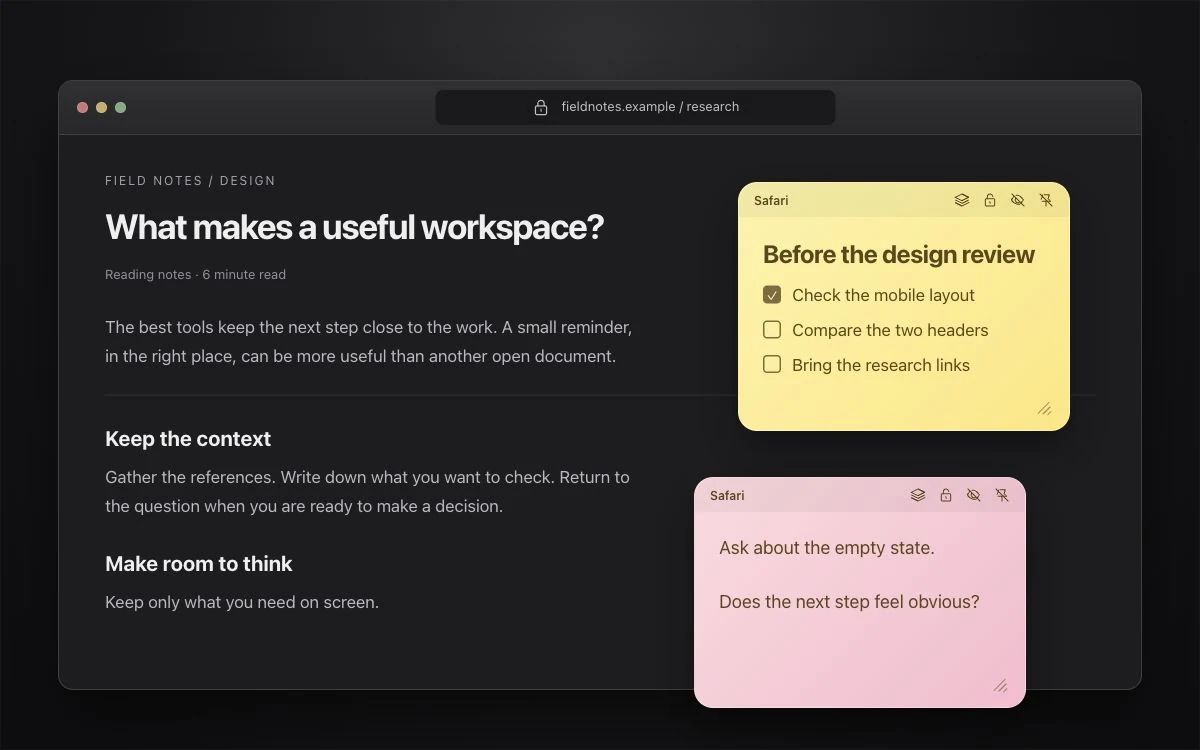
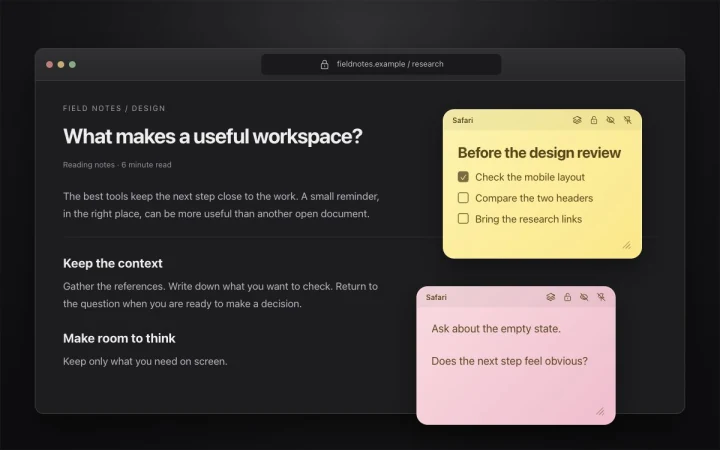
Attach sticky notes to windows, supported browser pages, Figma files, or applications. Drag, resize, stack, or hide them. Restart NotchPad and keep their placement.
Save it here, Claude
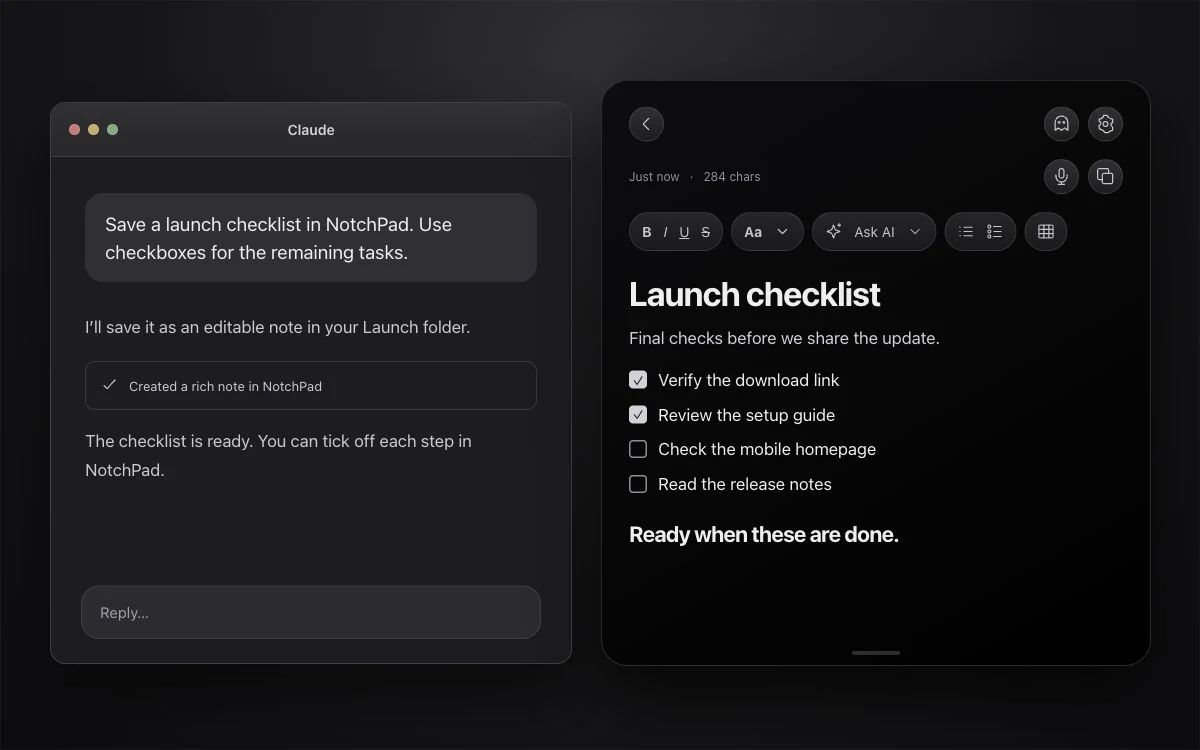
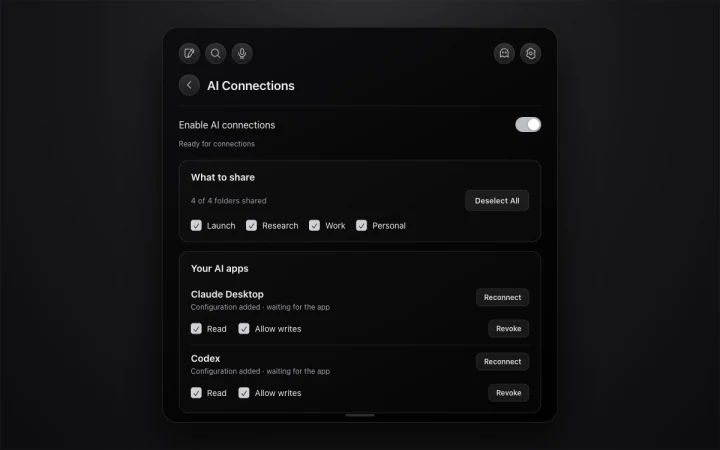
Connect Claude, Codex, Cursor, VS Code, and other MCP apps inside Settings. Choose folders and read/write permissions, then save editable summaries, plans, tables, and checklists.
For the things you’ll need again
- Rich text notes with images, editable tables and checklists
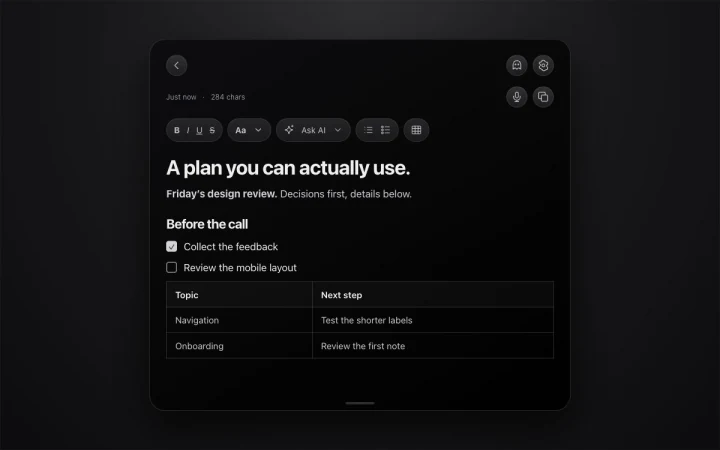
- Folders, search and pinned notes
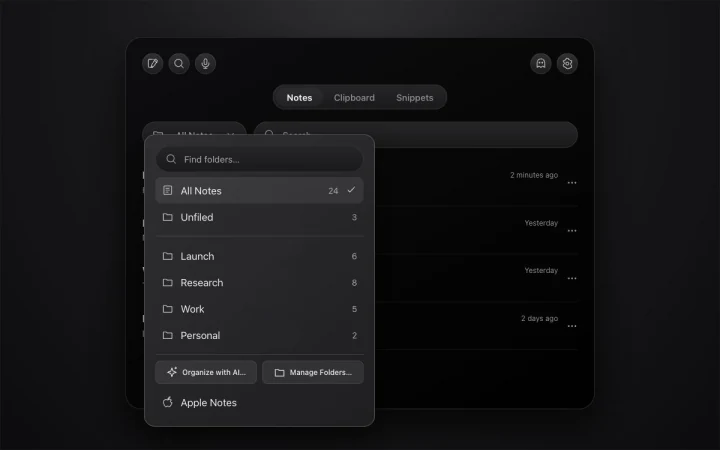
- Searchable local clipboard history
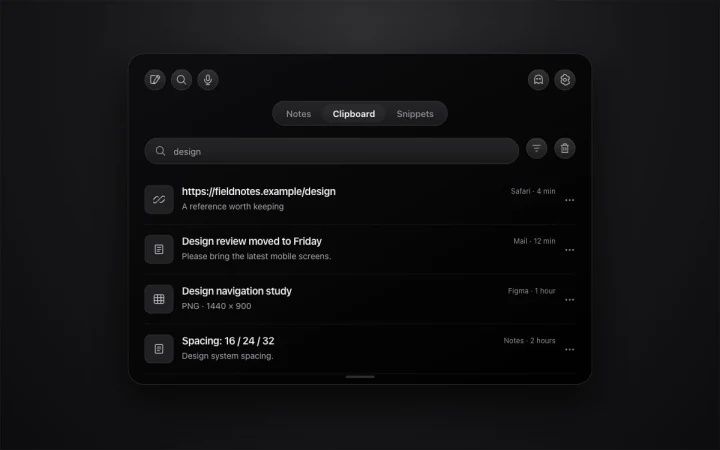
- Named reusable snippets
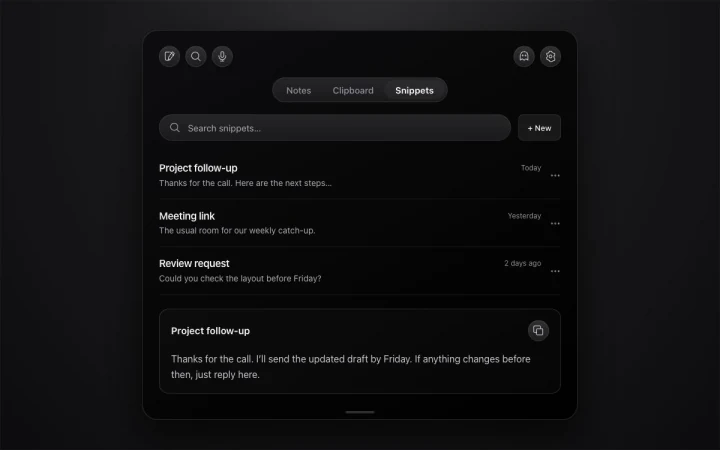
- Sticky notes for windows, supported pages, Figma files and applications
- Claude, Codex and other MCP connections with read/write controls
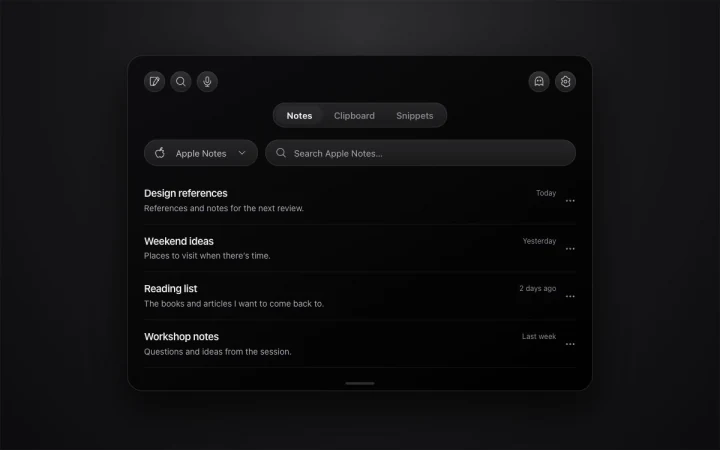
- Apple Notes browsing and editing
- Text import from documents, PDFs and code files
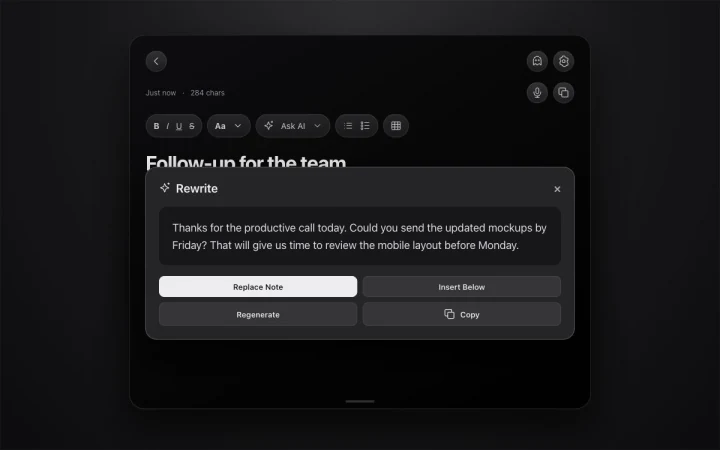
- Optional on-device AI editing on macOS 26 or later
- Floating panel and Ghost Privacy capture exclusion
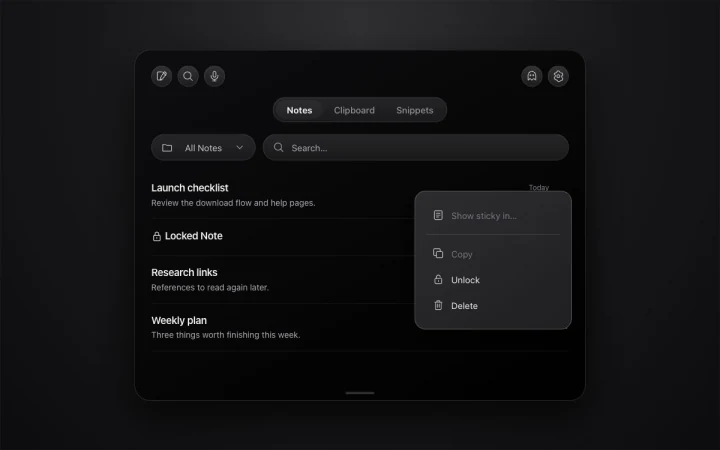
- Encrypted locked notes and recognized sensitive clipboard text
Try every feature for 14 days. No card needed and no automatic charge. After the trial, your saved content remains readable, copyable and exportable; the Welcome Note stays editable. Pro is $9.99 once for up to 3 Macs. Keep creating and editing notes, capturing clipboard history, saving snippets and using every feature. No subscription.
A full workspace when your notes need more room.
Open your working notes in tabs. Keep a brief beside its checklist. Find pinned and recent notes in the sidebar, then return to the notch for a quick reference. It is the same library in both views.
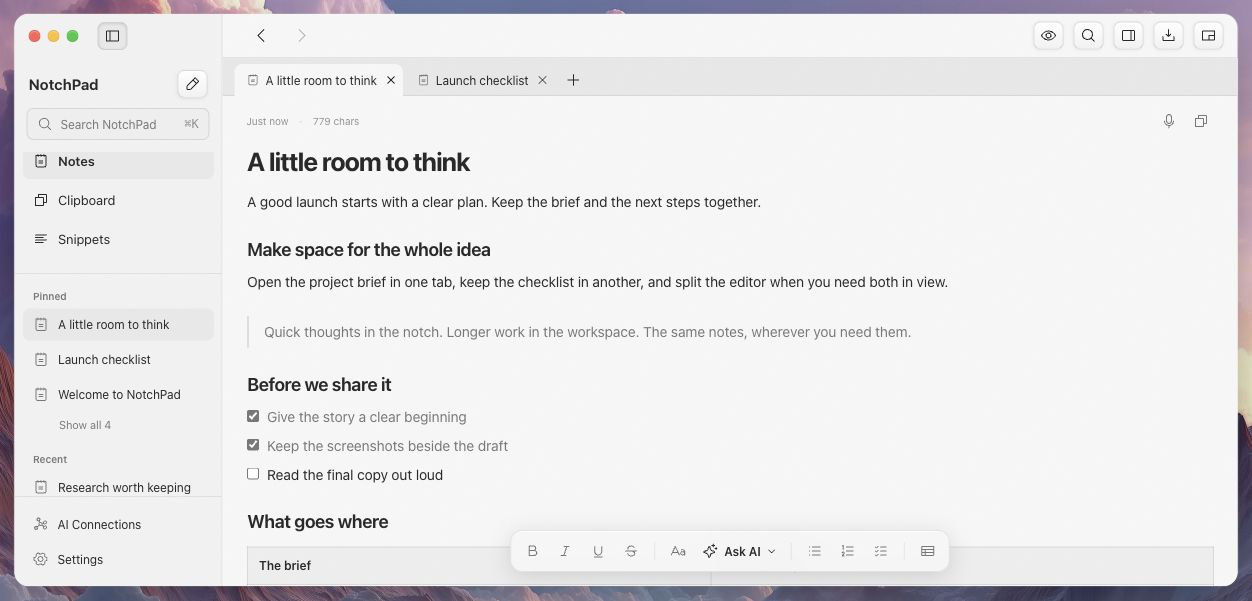
Use tabs and split editing · Choose the right view for your note
Frequently asked questions
Will NotchPad work on my Mac?
The current download supports Apple silicon Macs running macOS 15 or later. A physical notch is optional: on a desktop Mac or external display, NotchPad opens at the top center. Hover there, double-press Control, or use the menu bar.
How does the free trial work?
Try every feature for 14 days. No card needed and no automatic charge. After the trial, your saved content remains readable, copyable and exportable; the Welcome Note stays editable. Pro is $9.99 once for up to 3 Macs. Keep creating and editing notes, capturing clipboard history, saving snippets and using every feature. No subscription.
Can I keep a note on a particular window or page?
Yes. Choose Show sticky in… from a note’s menu, then select the window, a supported browser page or Figma file, or the whole app. Drag and resize the note, stack several together, or hide and show them with a shortcut. Window tracking requires Accessibility permission.
Do sticky notes come back after a restart?
Yes. Attachments stay saved when NotchPad or your Mac restarts. Window stickies keep their position, size, color, stack order, and hidden state. After closing a window or restarting your Mac, its sticky returns when NotchPad can uniquely identify the document. If the app does not expose that identity or several windows match, reattach the saved note. Page and app stickies return when you revisit their target.
Can Claude or Codex read and write my notes?
Yes, after you enable AI Connections in Settings and connect the app. Choose shared folders and read or write permission for each connection. AI can create notes and append content, including formatted text, tables, and checklists. It cannot move, rename, delete, or replace your notes or folders.
Where are my notes stored?
NotchPad stores notes, clipboard history, and snippets on your Mac. It does not upload that content to NotchPad servers. If you enable AI Connections, the connected AI app can read the content you share and may send it to its provider under its own settings. Locked notes, Apple Notes links, and clipboard history are excluded from MCP access.
Does every note need Apple Intelligence?
No. Notes, folders, clipboard history, snippets, sticky notes, and AI Connections work without Apple Intelligence. Built-in AI editing and folder suggestions require macOS 26 or later with Apple Intelligence enabled and its on-device model available in a supported language.
How do locked notes work?
Lock a note to encrypt its contents and require Touch ID or your Mac login password to reveal it. Recognized sensitive clipboard text is protected separately. Ordinary unlocked notes and ordinary clipboard items are not all encrypted by NotchPad.
What does Ghost Privacy do?
Ghost Privacy requests that capture software exclude NotchPad while keeping it visible on your display. Check the sharing or recording preview in the app you use before presenting; capture methods can behave differently. It does not lock the note or hide it from someone looking at your screen.
Can I dictate a note?
Yes. Click the microphone in the workspace or widget to dictate directly into an editable note. Recognition runs on your Mac and audio is not saved. Choose a language on first use or in Settings → Dictation. Dictation is included in the NotchPad trial and Pro; no separate app is needed. A supported on-device language and a first-time language download may be required.
Can I get a refund?
You can request a refund within 14 days of purchase by emailing support@tinythings.app or contacting Polar support.